UZH Print Plus - Printing with shortname
Creating a print job
For a print job to work, you need an active connection to the UZH network:
- At home: first start the VPN connection.
- At UZH: connect to the «UZH» Wi-Fi network (or via LAN/institute network).
Using the printer
- After installation, the printer will appear in the print menu as UZHPrintPlus and can be selected as usual.
- Once the print job has been sent, it can be printed at a multifunction device within 72 hours.
Especially for Mac users
- You will only be asked for your username and password when printing.
- Be sure to enter UZH\ before the short name.
Example: UZH\testname
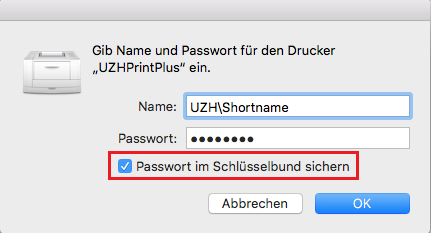
Tip: Check the «Save password in keychain» box so that the prompt does not appear every time you print.
Printing at UZH
1. Log in to the device
- Hold your UZH card to the card reader
- If necessary: enter your short name + AD password
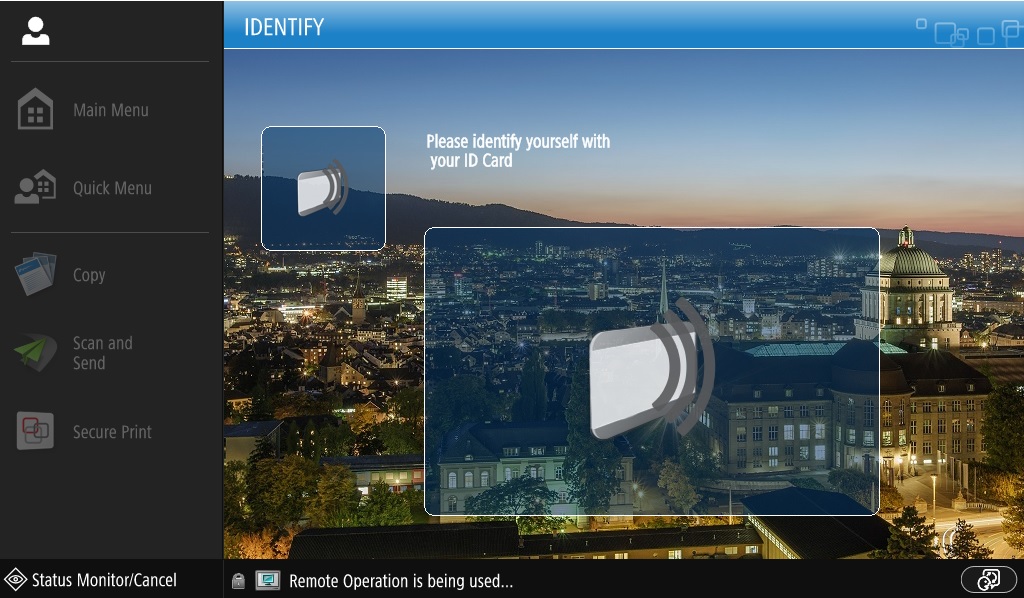
2. Open Secure Print
- Select Secure Print from the main menu.
- Your jobs will be displayed in the job overview/queue.

3. Manage print job
- Print + Delete: Print and remove job
- Options: Change settings (duplex, color, stapling, etc.)
- Delete: Remove job
