OneNote - Backup and Restore (macOS)
Learn how to backup and restore OneNote data by using macOS's backup technology Time Machine.
Table of contents
Back Up OneNote Data with Time Machine
Follow Apple's support web site to set up Time Machine. Activating the option "Back Up Automatically" is highly recommended.
Follow these steps to manually back up your OneNote data:
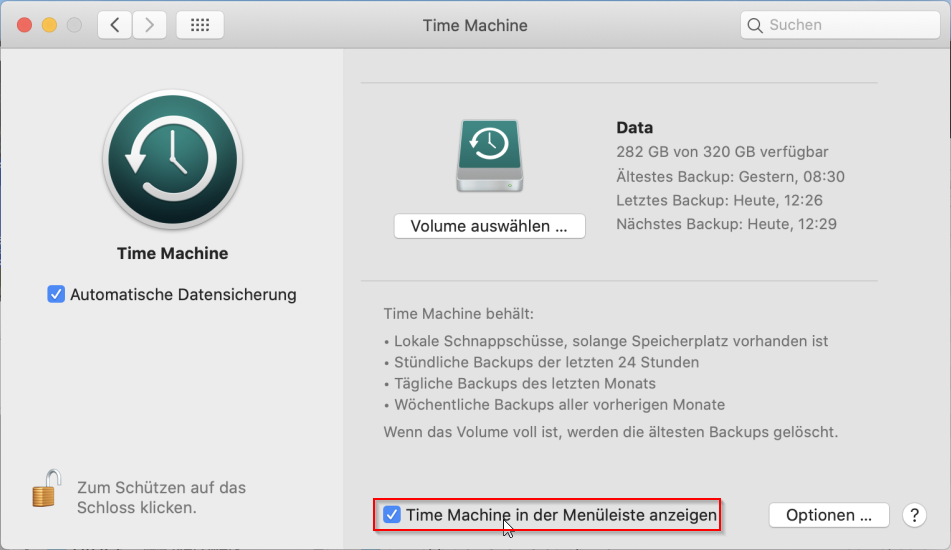
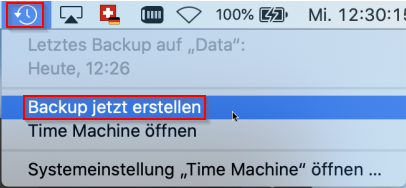
- A Time Machine backup can only be triggered manually by using the Time Machine menu bar item. If the icon is not already displayed in the menu bar, it can be revealed by ticking the option "Show Time Machine in menu bar" in System Preferences → Time Machine.
-
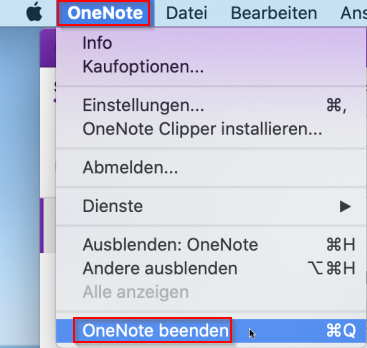
- For a successful backup of OneNote data, you need to quit OneNote. To do so, switch to OneNote and choose the menu item OneNote → Quit OneNote.
-
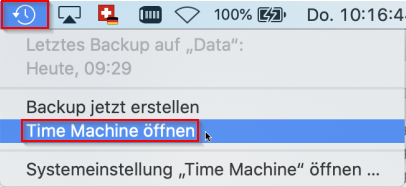
- Now click the Time Machine icon in your menu bar and select the menu item "Back Up Now". Please wait until the backup has completed.
-
Restore OneNote Data with Time Machine
For successful restore of OneNote date please follow these steps closely!
- Your computer must not be connected to the internet. Please disable Wi-Fi, make sure there are no active mobile hotspots and disconnect any network cables.
Important: If there is any internet connection whatsoever while you are restoring your data, the OneNote Application will not work after restore! - Quit OneNote.
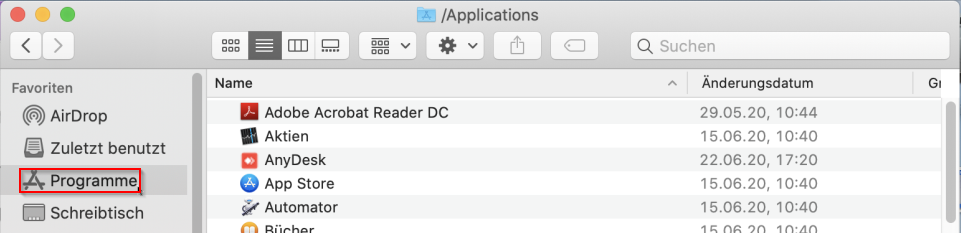
- In Finder, open your Applications folder. Move "Microsoft OneNote" to Trash.
-
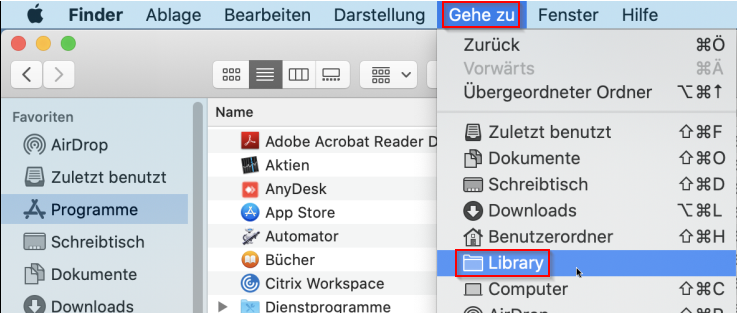
- Open your user "Library" folder. To do this, in Finder, open the "Go" menu, hold down your Option key (Alt key) and choose "Library"
-
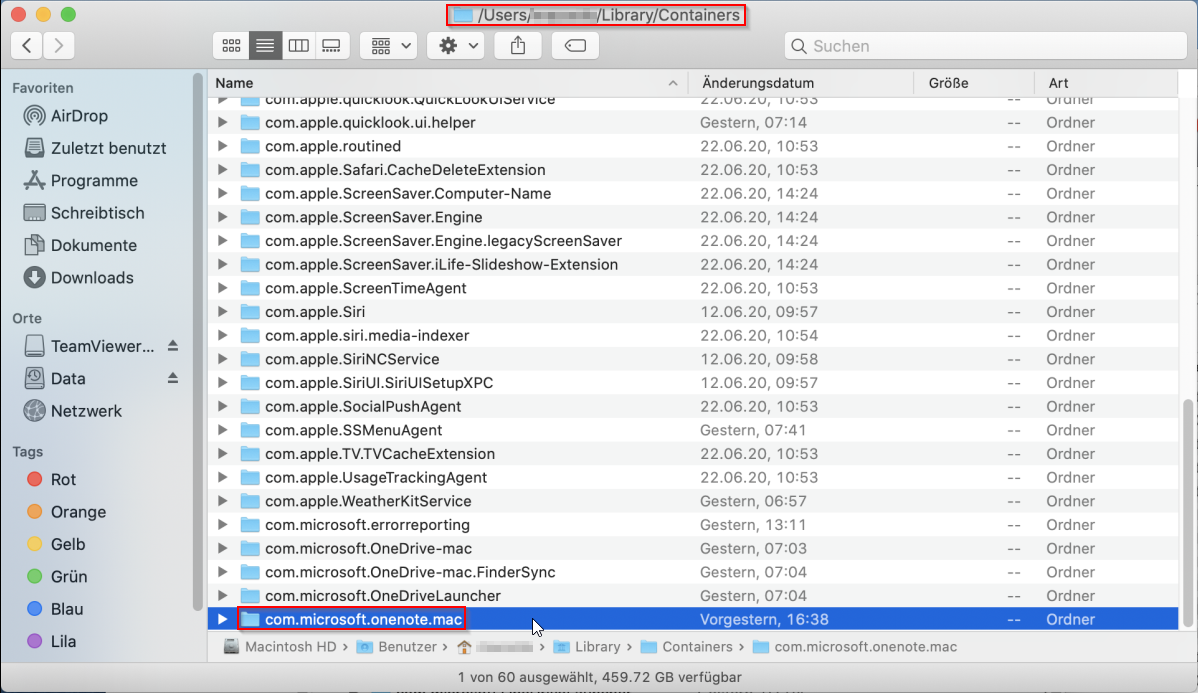
- In Library, open the subfolder "Containers" and select therein the folder "com.microsoft.onenote.mac".
-
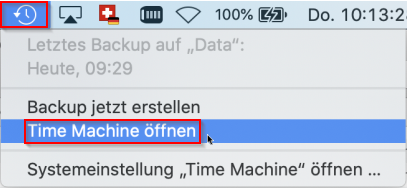
- Click the Time Machine icon in the menu bar and choose the menu item "Enter Time Machine".
-
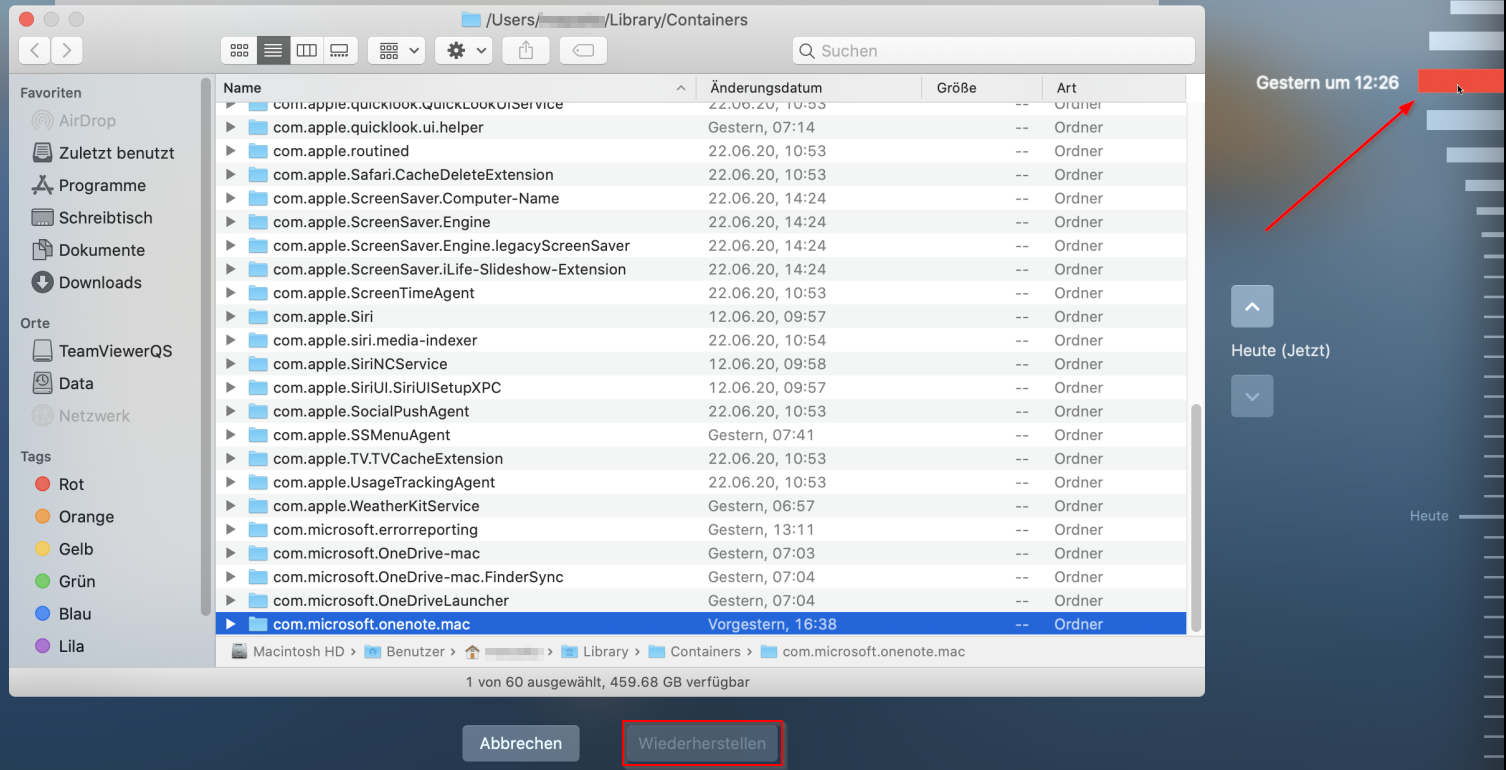
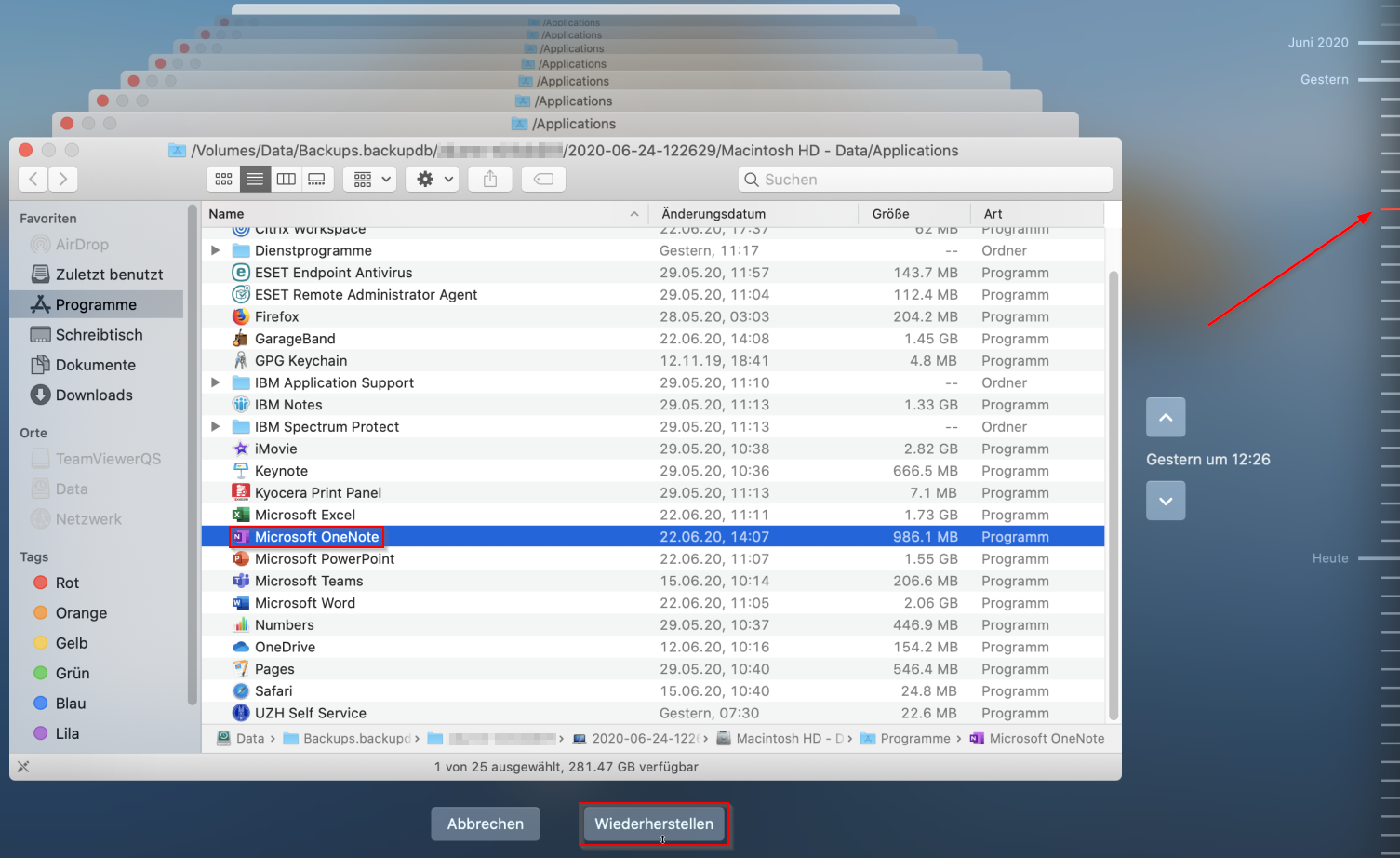
- In Time Maschine select your last backup before migration and make sure the folder "com.microsoft.onenote.mac" is selected. Click [Restore].
-
- Confirm replacement of existing data.
-
- Back in Finder, open your Applications folder.
-
- Again, click the Time Machine icon in the menu bar and choose the menu item "Enter Time Machine".
-
- In Time Maschine select your last backup before migration and make sure the application "Microsoft OneNote" is selected. Click [Restore].
-
- After having successfully restored your data and the OneNote Application you may reopen OneNote. Make sure the content within OneNote is as expected.
After this procedure, in some cases synchronization was defunct. To reenable synchronization the contents of your notebooks must be moved to newly created notebooks. For the procedure to do this, see OneNote - Migration of notebooks between accounts (macOS). - Only now you may reconnect your computer to the internet.