OneNote - Notebook Migration - Troubleshooting
On this page you will find a number of problems that showed up at our hotline during the migration of OneNote notebooks their respective solutions.
Table of contents
Error saving the onepkg export file
Problem
When exporting a OneNote notebook to an onepkg export file, an error message is displayed:
"Sorry, we can't create '[...].onepkg'. It's possible you don't have right permissions or enough disk space."

Solution approach
If this message appears when saving the onepkg export file, maybe your notebook is too large. If the onepkg file is larger than 0 kB (i.e. it is not empty), then it can be opened with OneNote 2016.
Even if the onepkg file can be opened, it is very likely that various sections of the notebook are missing. These must be determined manually and copied one by one from the original OneNote notebook.
Proceed as follows to copy:
- Your source notebook from the old Microsoft 365 environment should already be open in OneNote 2016. If not, open it.
- Also open the incorrectly exported onepkg file in OneNote 2016.
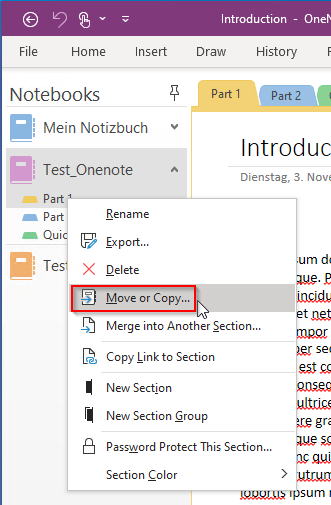
- Right-click the missing section in the source and select "Move or copy...".
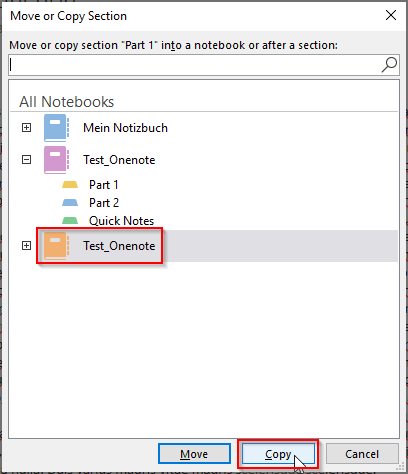
- Select the open onepkg file as destination and click "Copy"
Problems moving the notebook to OneDrive
Problem
The "Moving the import to OneDrive" section of the Windows Migration Guide does not work as described.
Approach
Try this alternative procedure:
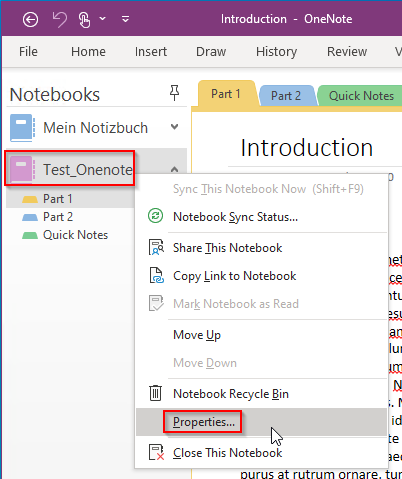
- Right-click the local notebook and select "Properties".
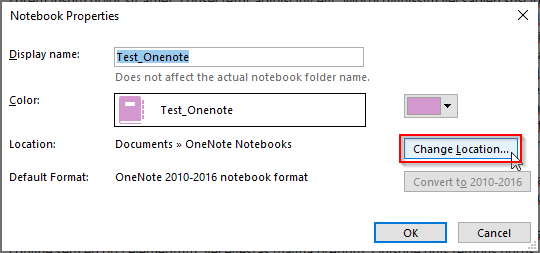
- Click on "Change location..."
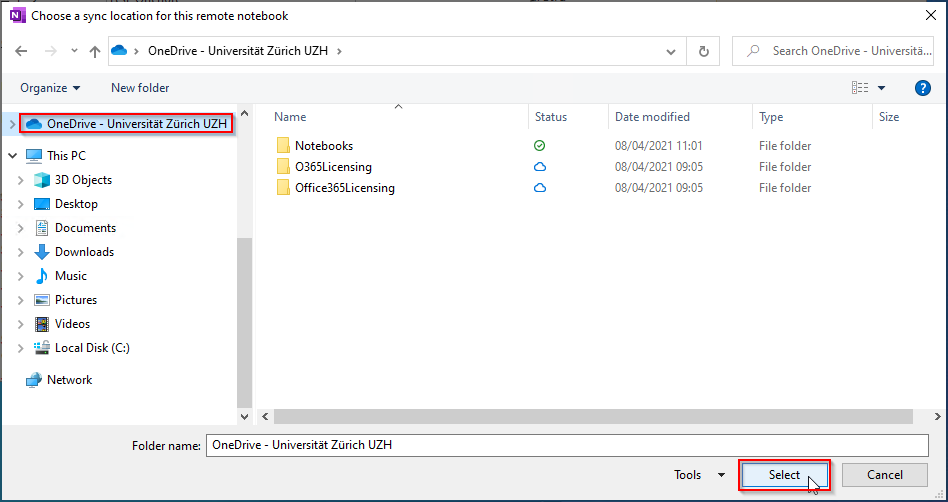
- Choose a location on "OneDrive - University of Zurich UZH", or in a sub-folder like this one in the folder Notebooks.
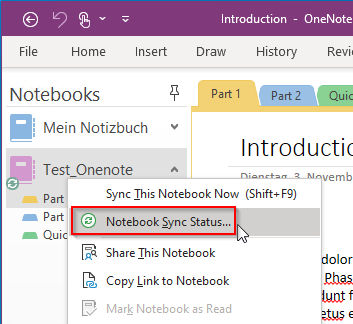
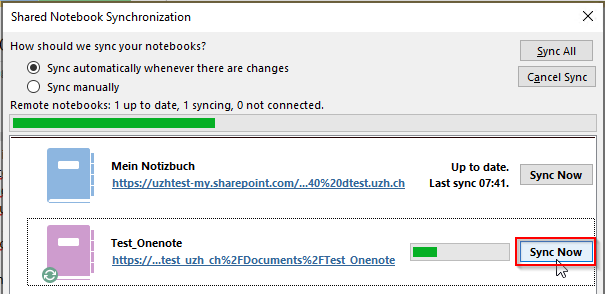
- Synchronization can take a very long time. You can check the status by right-clicking the notebook and selecting "Notebook synchronization status...".
- Wait until the synchronization is complete and the green synchronization symbol has disappeared. No exclamation mark must be displayed on the notebook icon. If errors occur, restart the synchronization.
Restore OneNote Windows 10 App data
If a system image backup of the computer was created before, the system image must be restored (afterwards the data and the app have the status of the date on which the image was created).
If there is only a backup of the directory "%LocalAppData%\Packages\Microsoft.Office.OneNote_8wekyb3d8bbwe", you can rename the existing directory "Microsoft.Office.OneNote_8wekyb3d8bbwe" under "%LocalAppData%\Packages" and restore the backed up folder in this folder. However, this restore method only works if the app was not updated after the directory was backed up.
Under certain circumstances you may not be able to rename or delete the existing directory because a process is blocking it:
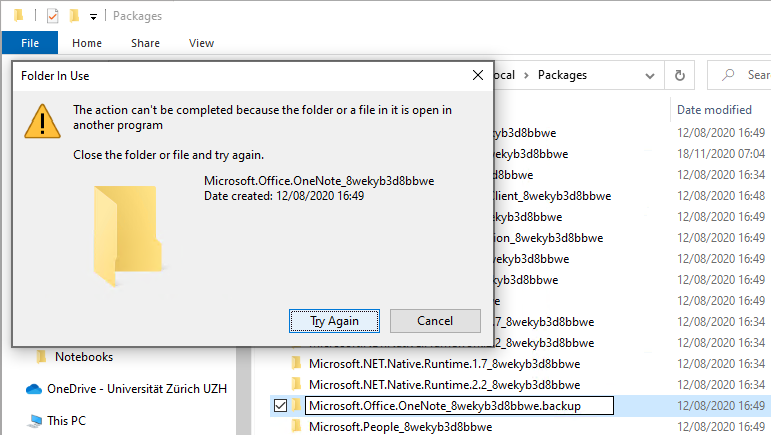
If this is the case, the blocking process must be identified and terminated. Here are the steps:
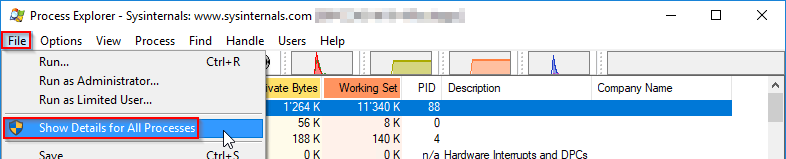
- Download the Process Explorer from the Microsoft homepage and start it. Under "File", click on the option "Show Details for All Processes", the security warning must be confirmed with "Yes".
-
- Click on "Find" in the menu and select "Find Handle or DLL...".

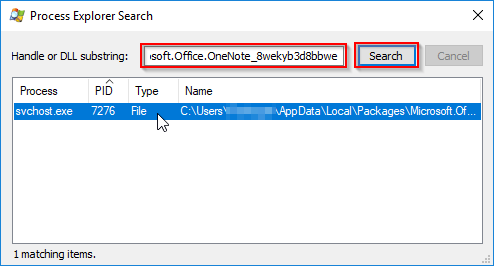
- Enter the name of the blocked directory "Microsoft.Office.OneNote_8wekyb3d8bbwe" and click "Search". The result is displayed in the search window, the blocking process will be also highlighted in the main window.
-
- Close the search window and end the process which blocks the directory renaming by right-clicking the directory and selecting "Close Handle".

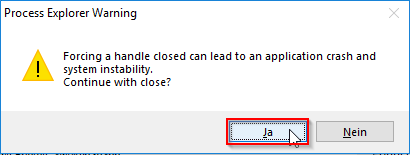
- Confirm the warning with "Yes".
- The directory can now be renamed or deleted.