UZH Print Plus - Printing with Card ID
Printing from public workstations
- The UPP4Guest_PCL printer is already installed on library computers.
- To print, you need a UPP4Guest card (available at the counter).
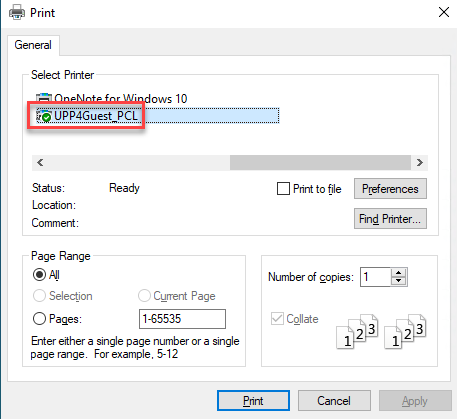
Important: Only the UPP4Guest_PCL printer can be used. With other printers, no pop-up (small window) appears and the print job is not executed.
Start print job
- Print the document as usual via UPP4Guest_PCL.
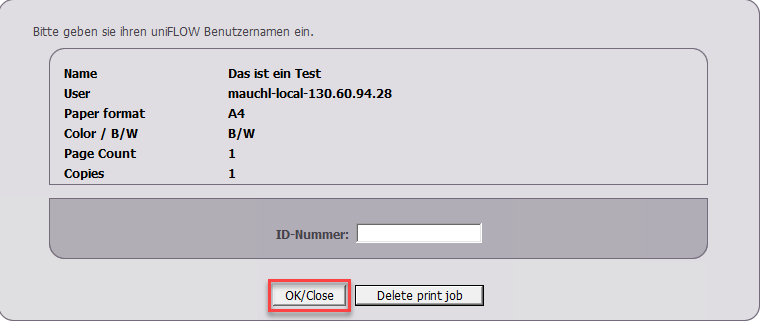
- A pop-up window appears:
- «OK/Close» button: Send print job
- «Delete print job» button: Cancel
Printing at UZH
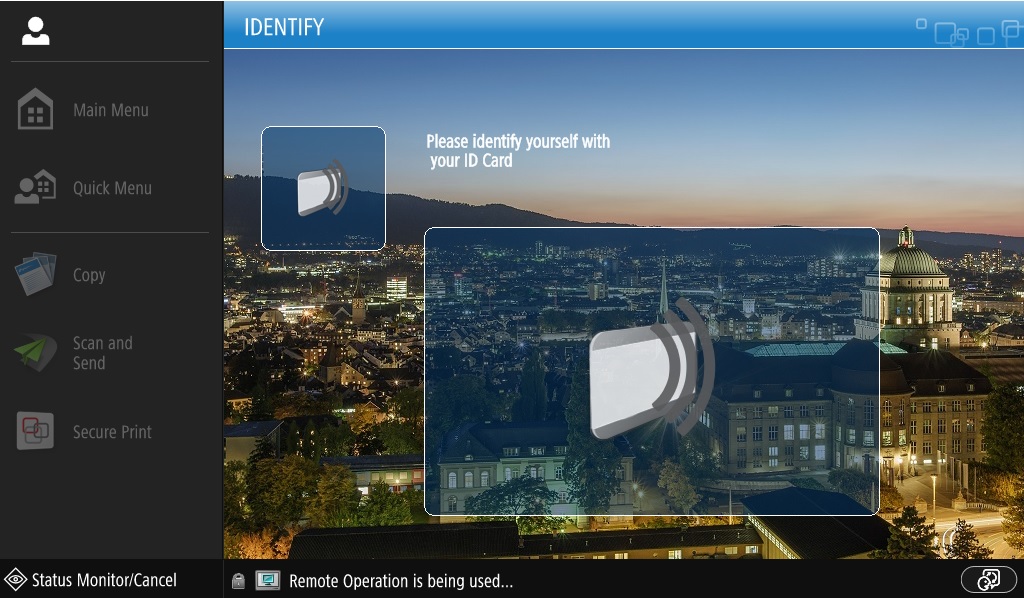
1. Log in to the device
- Hold your card ID card to the card reader.
2. Open Secure Print
- Select Secure Print from the main menu.
- Your jobs will be displayed in the job overview/queue.

3. Manage print job
- Print + Delete: Print and remove job
- Options: Change settings (duplex, color, stapling, etc.)
- Delete: Remove job
