WLAN on Mobile Devices
show all
WLAN connection on iOS
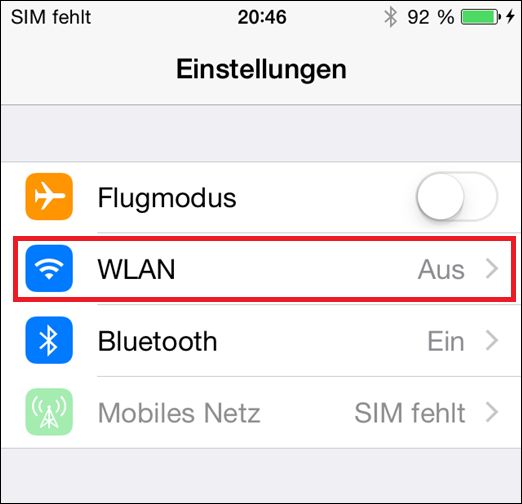
1.) Open settings

- The app icons vary from operating system version to operating system version (iOS 6 on the left, iOS 8 on the right). The configuration steps, however, usually remain the same.
2.) Select WLAN
3.) Activate WLAN adapter and select "uzh" network
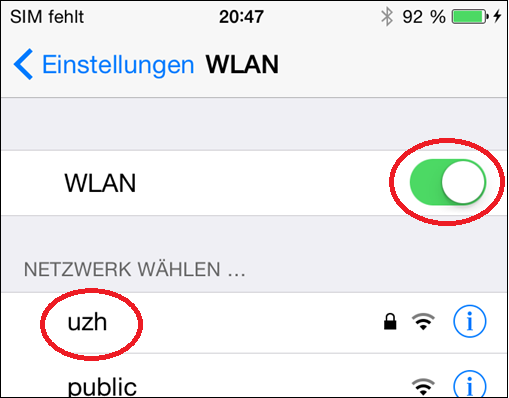
ATTENTION: For UZH members we recommend the secured (because encrypted) "uzh" network instead of the unsecured "public" network.
4.) Enter and connect user data
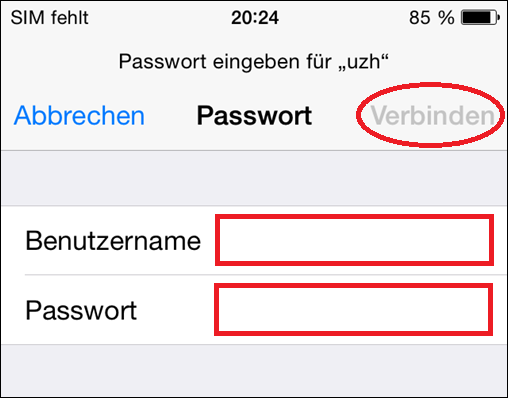
- Username: Your Shortname or mail address
- Password (Password): Your WLAN password
- Tap on "Connect".
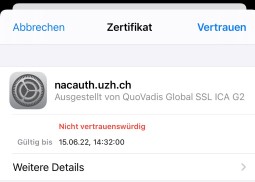
5.) Accept unchecked certificate
6.) WLAN connection status
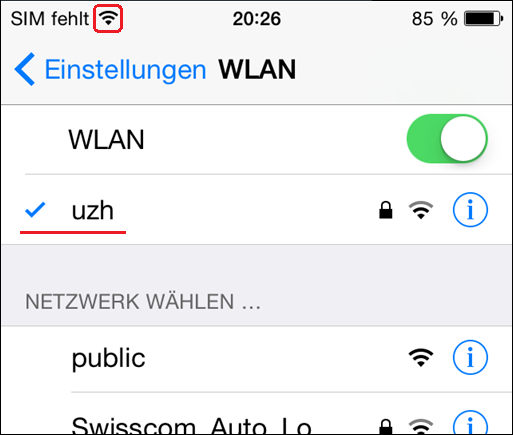
- An active WLAN connection is shown in the menu bar as a radio wave symbol.
WLAN connection on Android
1.) Open settings

- Left: The app icon for the settings on Android 2
- Right: Possible app icons for the settings on Android 6
2.) Select wireless / WLAN
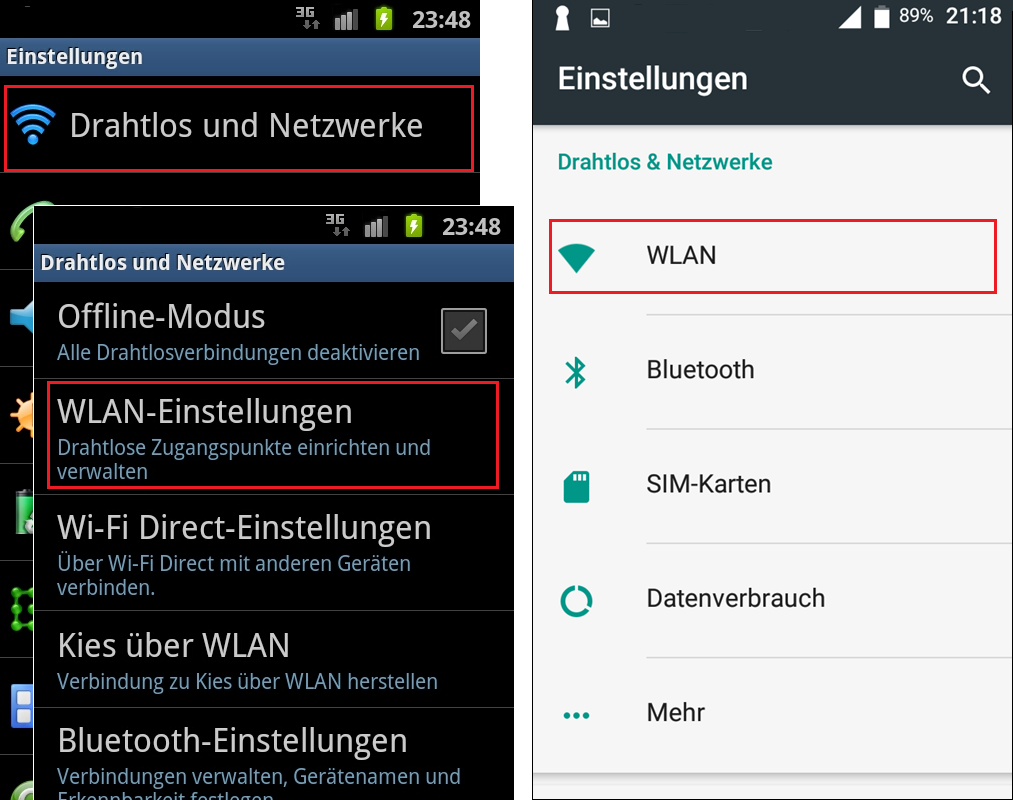
- Android 2: "Wireless and Networks" > "WLAN Settings".
- Android 6: Select "WLAN" in the "Wireless & Networks" section.
3.) Activate WLAN adapter and select "uzh" network
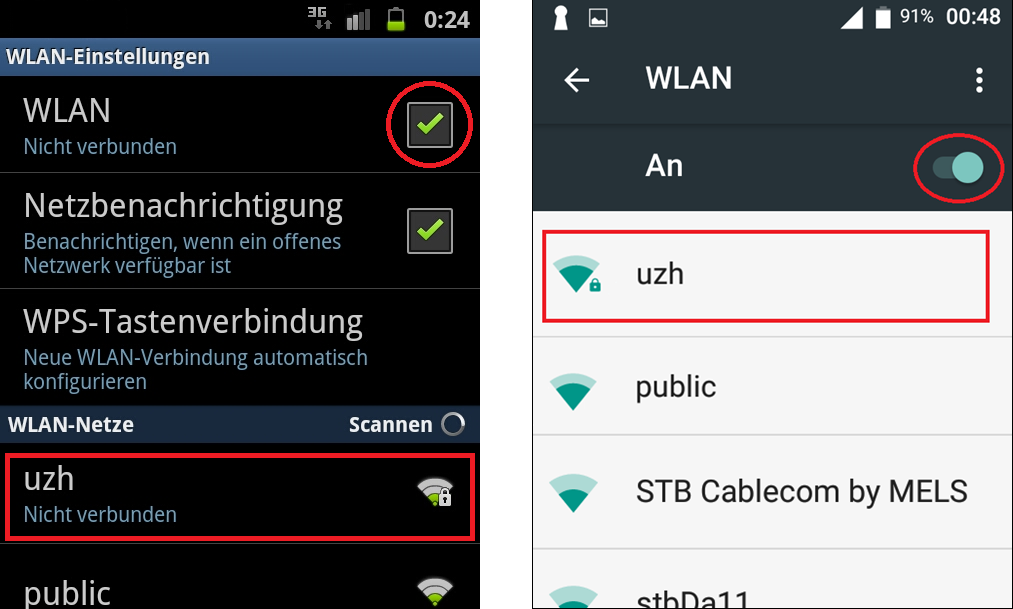
ATTENTION: For UZH members we recommend the secured (because encrypted) "uzh" network instead of the unsecured "public" network.
4.) Specify "uzh" properties and user data
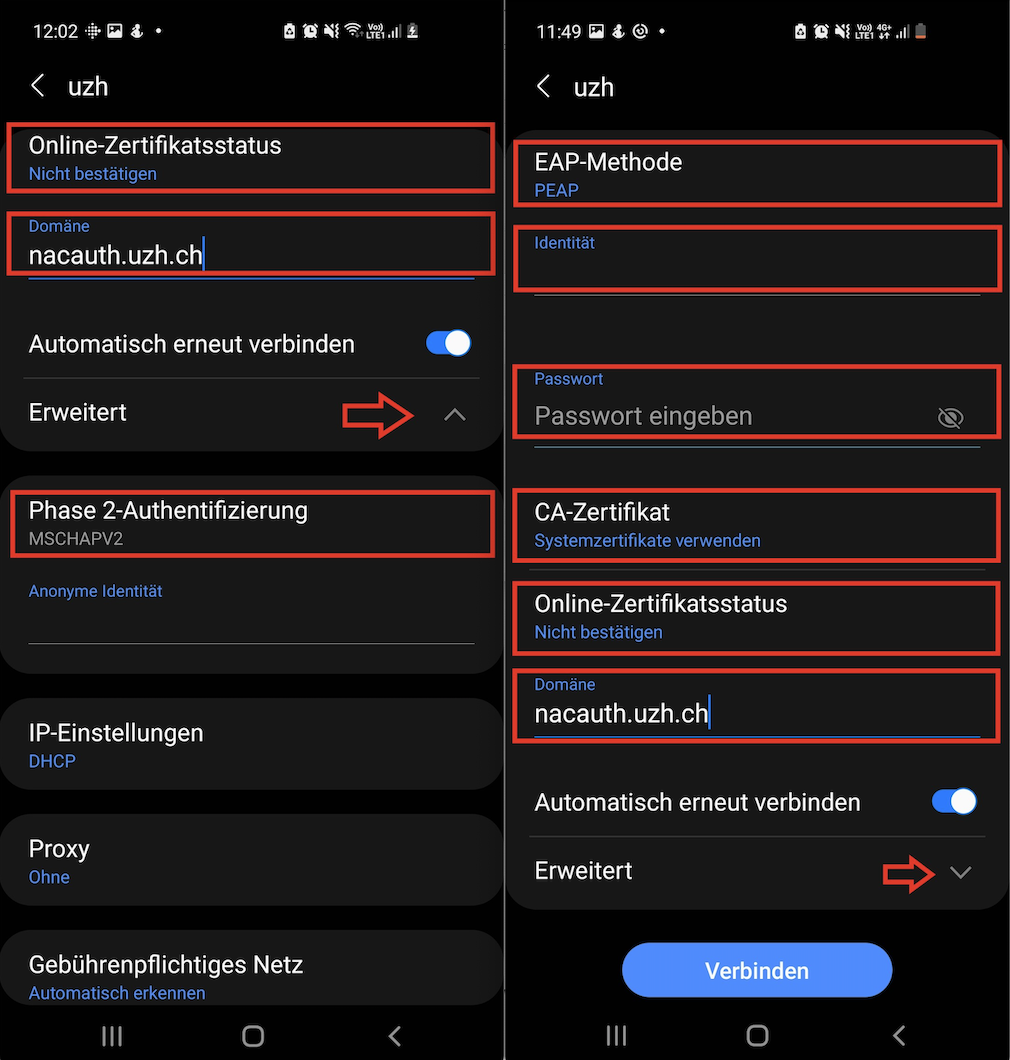
- EAP-Method: PEAP
- Phase 2 authentication: MSCHAPV2
- Identity: Your Shortname or mail address
- Password: Your WLAN password
- Android 6: IPv4 settings: DHCP
- Tap on "Connect".
If not all fields are visible, scroll down (Android 2) or open the "Advanced Options" drop-down menu (Android 6).
5.) WLAN connection status
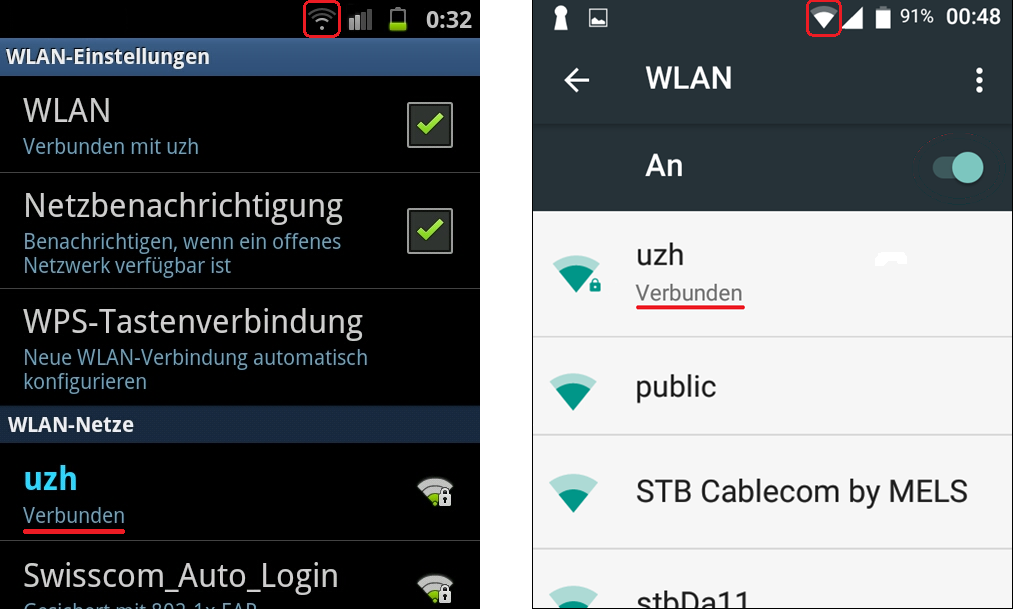
- An active WLAN connection is shown in the menu bar as a radio wave symbol.