UZH Print Plus - Scan and Send
You can send documents directly to your UZH email address using the «Scan and Send» function in the main menu.
Identify yourself at the multifunction device by placing your UZH card on the card reader.
How to proceed
- Place the document in the feeder or on the document glass.
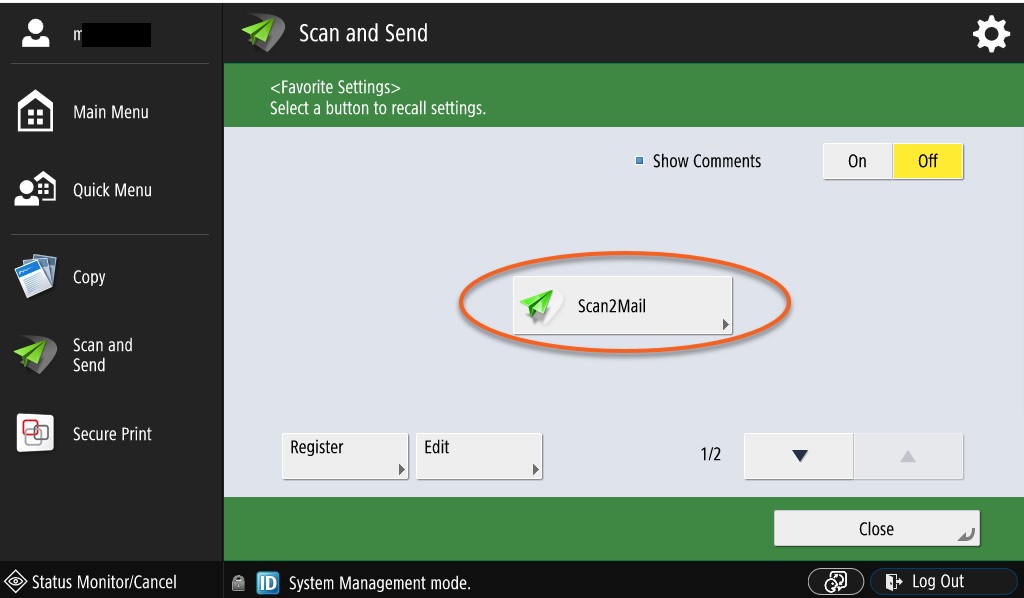
- Select the «Scan and send» function.
- Click on «Scan2Mail».
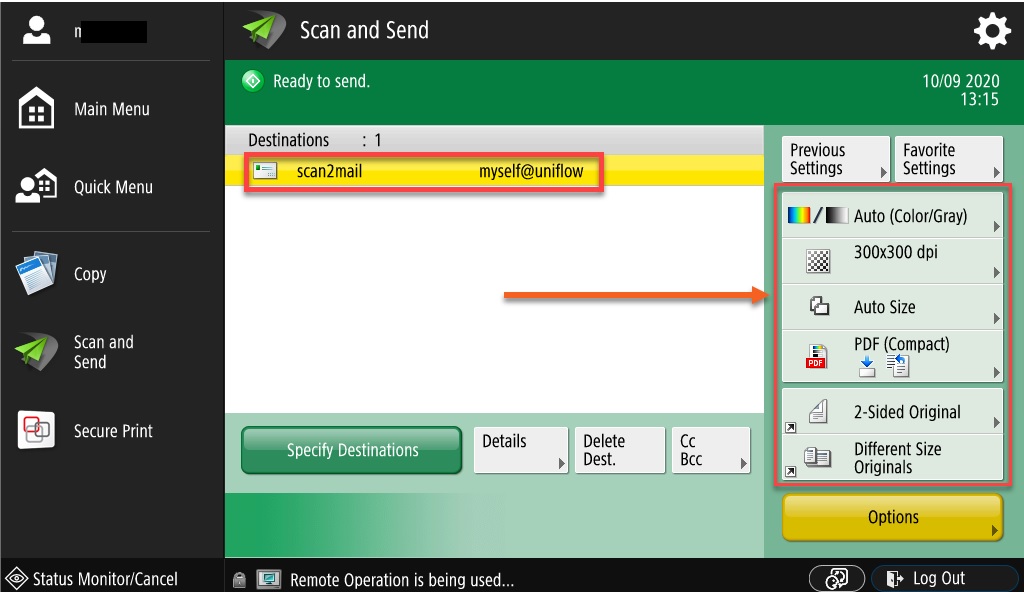
- If necessary, adjust the scan settings in the right-hand window.
- Start the scan by clicking on the «Start» button.
Note:
The recipient scan2mail with the address myself@uniflow is fixed.
This ensures that your scan is always delivered to your own UZH email address.