UZH Print Plus - Mail to Print
What is Mail to Print?
Mail to Print allows you to send documents directly to a UZH Print Plus device via email, even from outside the UZH network.
- Supported file formats: PDF, Word, Excel, PowerPoint.
- The email text itself can also be printed.
- For best results, we recommend PDF documents.
Requirements
- Students/employees: The sender address must be your UZH email address.
- Guests should use the address provided when purchasing credit.
- Unknown senders: Emails will not be processed.
Preparation: Install the Outlook app
The Microsoft Outlook app is recommended for iOS/iPadOS and Android.
- Download from the App Store / Google Play.
Note: Any email program will work – the important thing is to use the correct sender address.
Send print job
- New email to mailtoprint@zi.uzh.ch .
- Add document as attachment.
- Send email.
The job will remain stored in the system for 72 hours and can be printed at any UZH Print Plus multifunction device.
Printing at UZH
1. Log in to the device
- Hold your UZH card to the card reader
- If necessary: enter your short name + AD password
2. Open Secure Print
- Select Secure Print from the main menu.
- Your jobs will be displayed in the job overview/queue.

3. Manage print job
- Print + Delete: Print and remove job
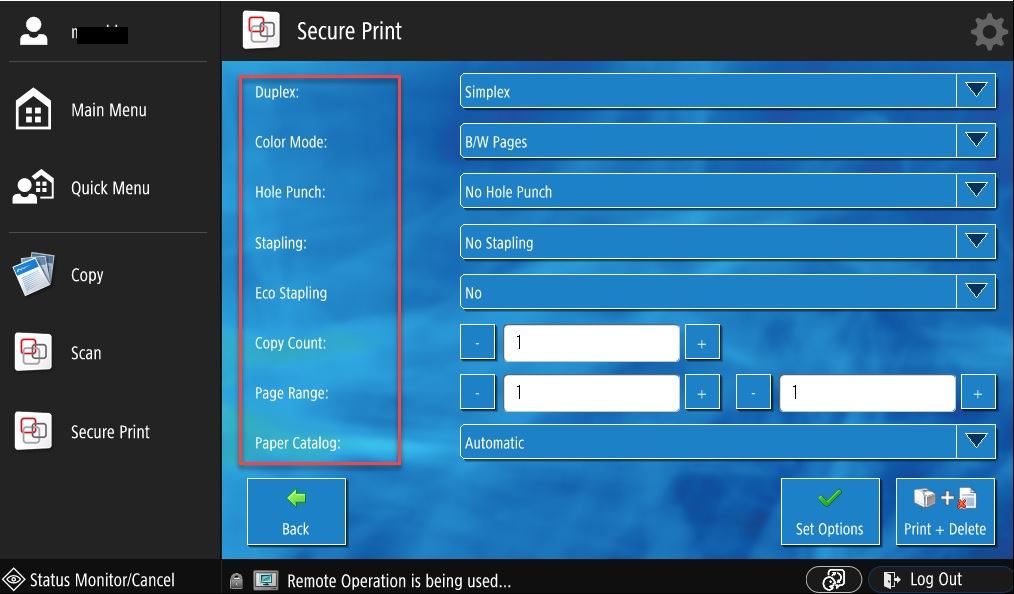
- Options: Change settings (duplex, color, stapling, etc.)
- Delete: Remove job

Change document properties
- Adjust duplex, color mode, stapling, etc. as desired
- with Set options you get back to the Secure overview
- print with Print + Delete
This allows you to start your print job quickly and securely from any device.